Project Export & Import: Backup and Move Projects Easily
EasySLR now lets you export and import projects, making it easier to back up your work, share it with others, or continue a project in another organisation—without losing data or review history.
What’s New
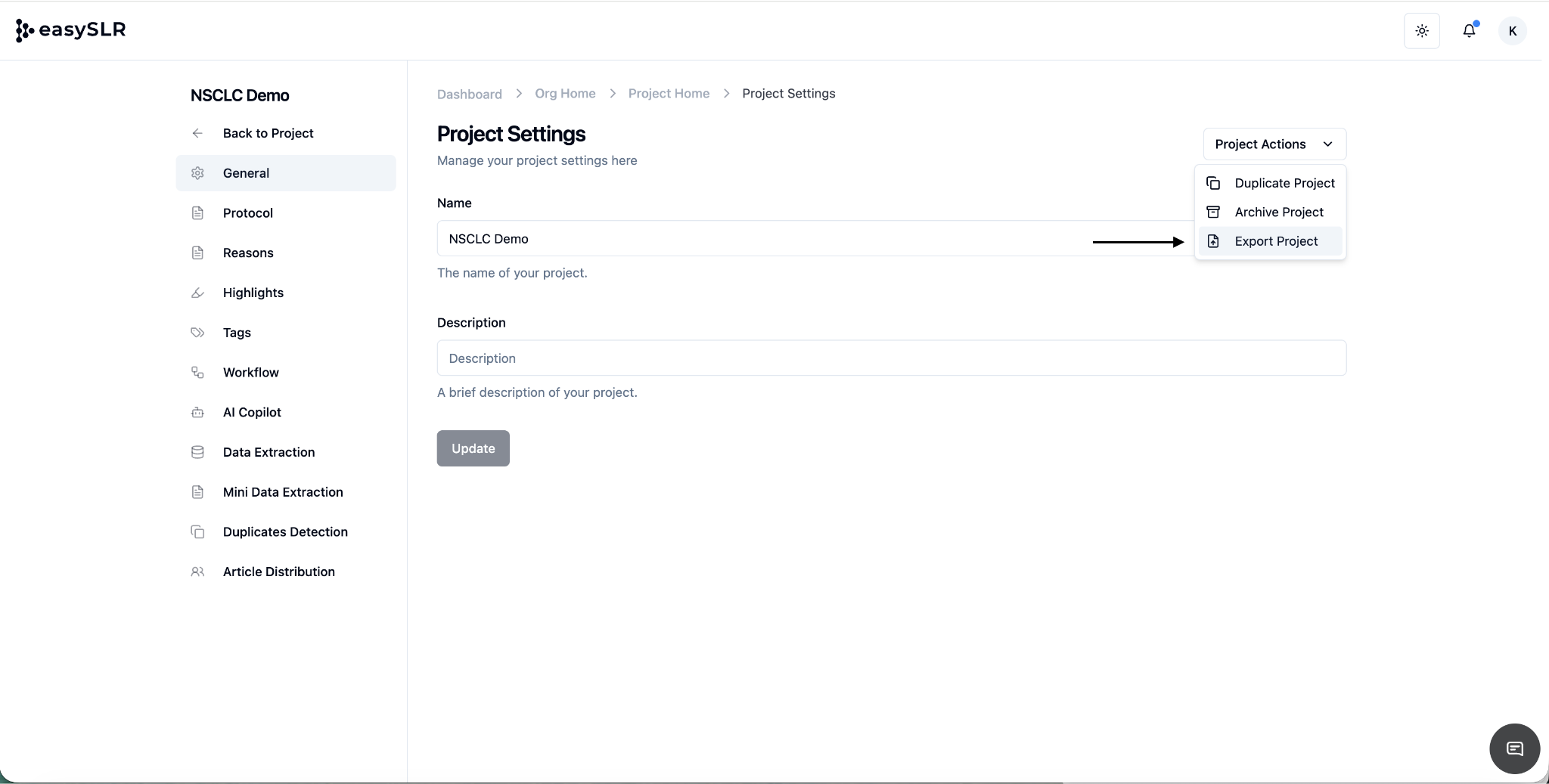
Export Your Project
Project Owners can now download their project data from Project Settings. This helps you:
Keep a backup of your project
Share project data with collaborators
Move a project to another EasySLR organisation if needed
Note: EasySLR does not currently support one-click project transfer between organisations.
What Gets Exported
When you export a project, the following data is included:
Screening Decisions
Title–Abstract and Full-Text decisions
Reasons, tags, and reviewer details
Conflict and QC-resolved decisions
Data Extraction
All Data Extraction fields set up in the project
Reviewer-entered data and final agreed values
Reports
Screening statistics and audit logs
Project Settings
All project-level configuration settings
Export File Delivery
After exporting, you’ll receive an email with a ZIP file, which includes:
A project file with all project data
Separate PDF batch files containing all the full-text PDFs
Importing a Project into Another Organisation
To import the project:
Go to the destination organisation’s home page
Click the three-dot menu next to Add Project
Select Import Project

Upload the ZIP file named project data that you received by email
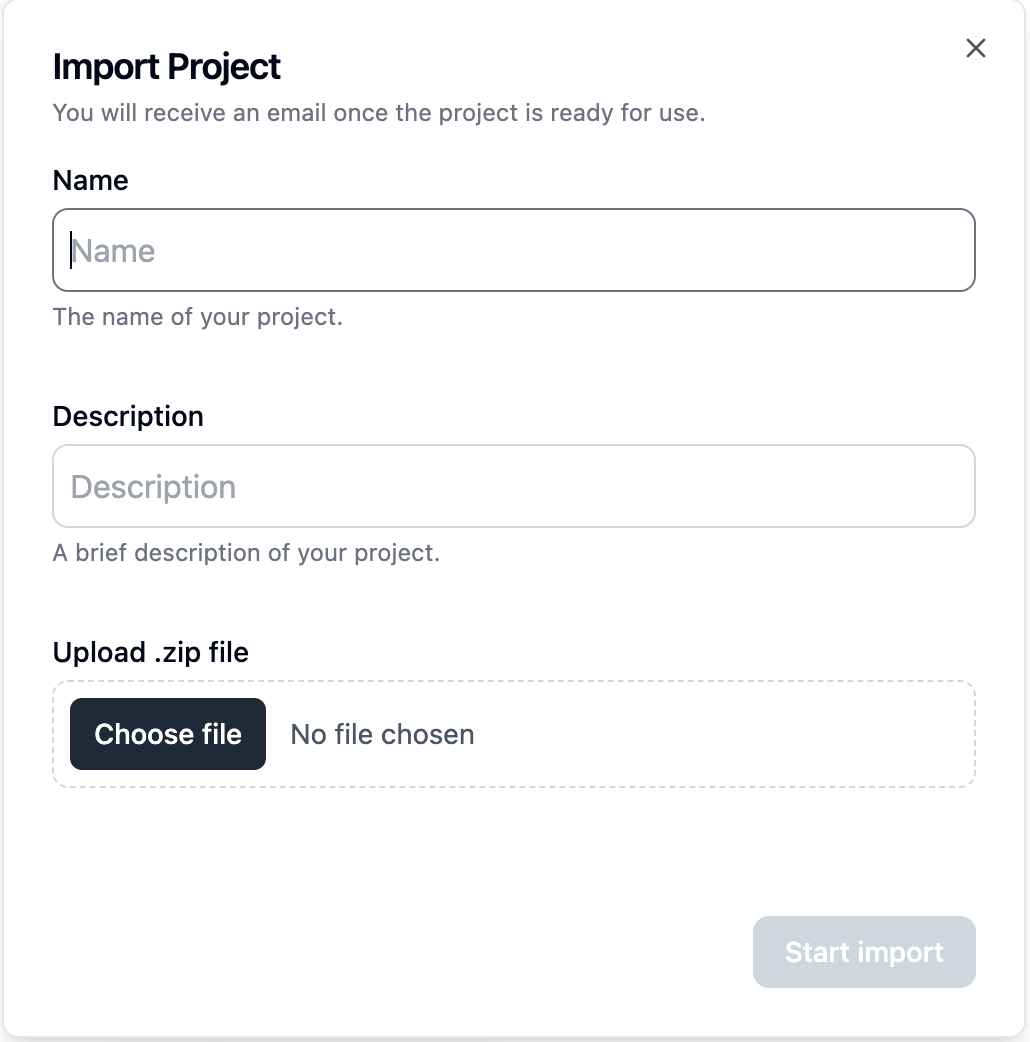
EasySLR will automatically map the fields and create a new project.
Uploading PDFs
Full-text PDFs are not imported automatically.
You can upload them separately and match them using RefID-based folder upload to link them correctly to the articles.
Important Things to Know
Team members are not included in the export and must be added again in the new project
PDFs must be uploaded separately using the supported upload options
Why This Is Useful
This update helps teams:
Safely store and back up project data
Move projects between organisations
Continue reviews without starting over
Maintain clear records and audit history